
Purpose and scope
Use the Bill of Materials (BOM) in VisionPLM to define the materials that make up a product. The BOM links a product to its materials and allows you to specify:
- The material category and material for each BOM row.
- The material colour to use for each product colour.
- The quantity of each material required for each product size.
- The material size to use for each product size, where applicable.
Open the Bill of Materials
You can access a product’s BOM from either the Product Form or the Product Manager grid.
- Open the relevant product in the Product Form, or select it in the Product Manager grid.
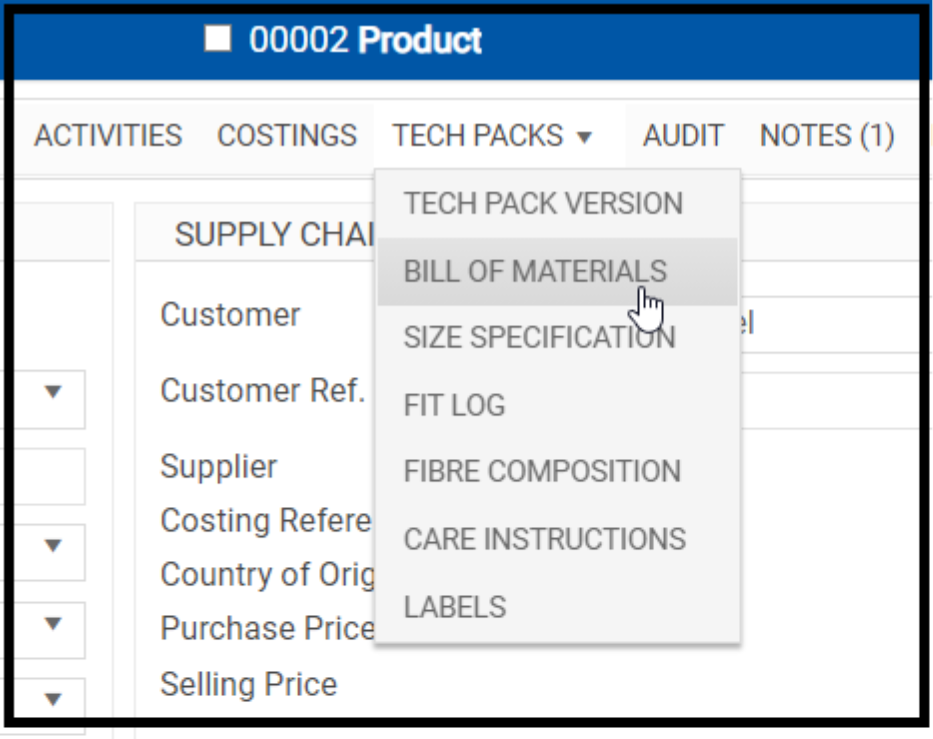
- Select BOM from the sub-menu beneath the main menu.
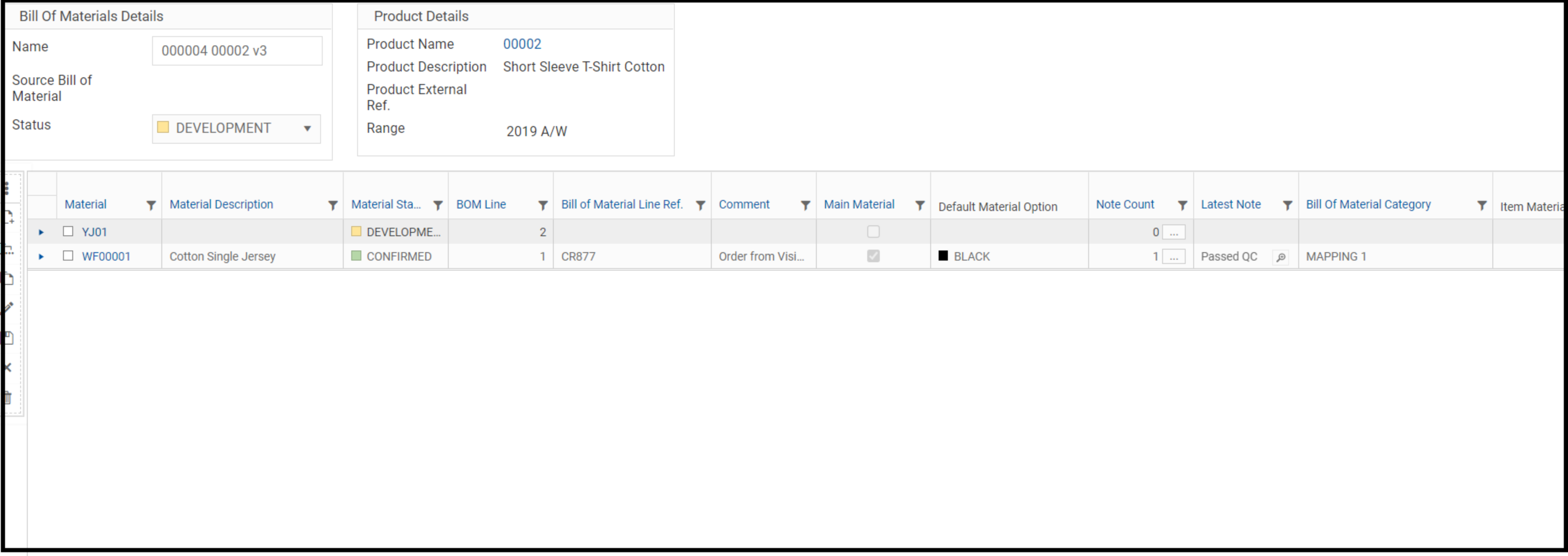
The BOM opens in a new window and displays the Bill of Materials grid.
Assign materials
Use the Bill of Materials grid to associate materials with your product. Each row contains a Material Category, such as Fabric or Trim, followed by a material that belongs to that category.
For each material you want to include, select the appropriate material category and then the required material.
Assign material colours
For each material, specify which Material Colour to use for each Product Colour.
- If the material colour varies by product colour: assign the appropriate material colour to each product colour.
- If the same material colour applies to all product colours: use the Default column to set the material colour across all product colours.
Define quantities and size
Specify how much of each material is required for each size of your product.
Where a material is available in multiple sizes, associate the appropriate Material Size with each Product Size.