
Article Public Number: KA-01256
Coats Digital Knowledge Article
Product: VisionPLM
Overview:
VisionPLM creates its costing templates by importing pre-configured Excel worksheets. Excel is used as the mechanism to:-
- Set the named Ranges, which creates elements in VisionPLM
- Set the Style and Layout of the costing template
- Add in the Formulae to calculate in the costing template
- Instead of formatting the cell as a percentage use Number and where applicable multiple/divide by 100 to get the percentage. For example, in Excel 20% will be stored and displayed as 0.20 in VisionPLM
- Deleting a row may change the sheet in such a way as to change the cells that data is pointing to. This may invalidate a cell reference or make two named ranges point at the same cell.
- Try and keep nested formulas to a minimum, instead of having nested formulas create a section off the main page to hold the intermediate values and reference the cells in the formula
- Use Cell references in formulas rather than name ranges (The costing component has been known to not save values where name ranges have been used.)
- Fields that can be edited should be highlighted in a specified colour (E.g. Vision Blue)
- Calculations should be on non-rounded cells, totals should be rounded to a sensible number of decimal places e.g. 2 to 4 Protecting cells
- Right-click on any selected cell and click Format cells
- Click the ‘Protection’ tab
- Tick the checkbox ‘Locked’
- Select all the cells that should be editable, by holding down the Ctrl key and selecting the required cell
- In the ribbon bar, select the Review tab
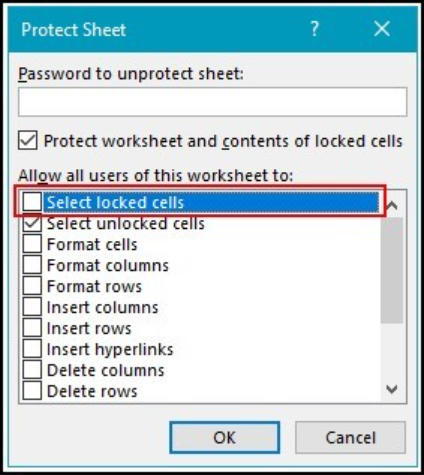
- Click Protect Sheet
- Untick Select Locked cells
- String - used for all text fields in the costing sheet
- Int – a whole number
- Double – a decimal number
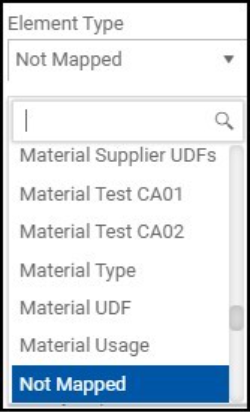
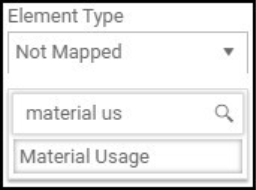
- Type the name of the element type into the search box
- Click on the element type
- Click save
- Select the next element in the list that needs the same type
- The element type will have been remembered from the previous element
- To define a costing element to be summed
- Go to System - Maintenance - Costing Mapping
- Select the element in the grid on the left
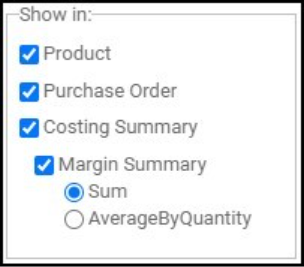
- In Show in tick Costing Summary, Margin Summary, and Sum
- Costed quantity – The number of units that are being costed. Must be mapped to the element type Costed Quantity
- Selling price – The price at which a single unit is being sold. The element defined against Selling Price 1
- Margin value – The sales price less the purchase cost of a single unit
- Margin weighting factor – Total value of sales for that product, which is calculated by multiplying the sales price by the costed quantity
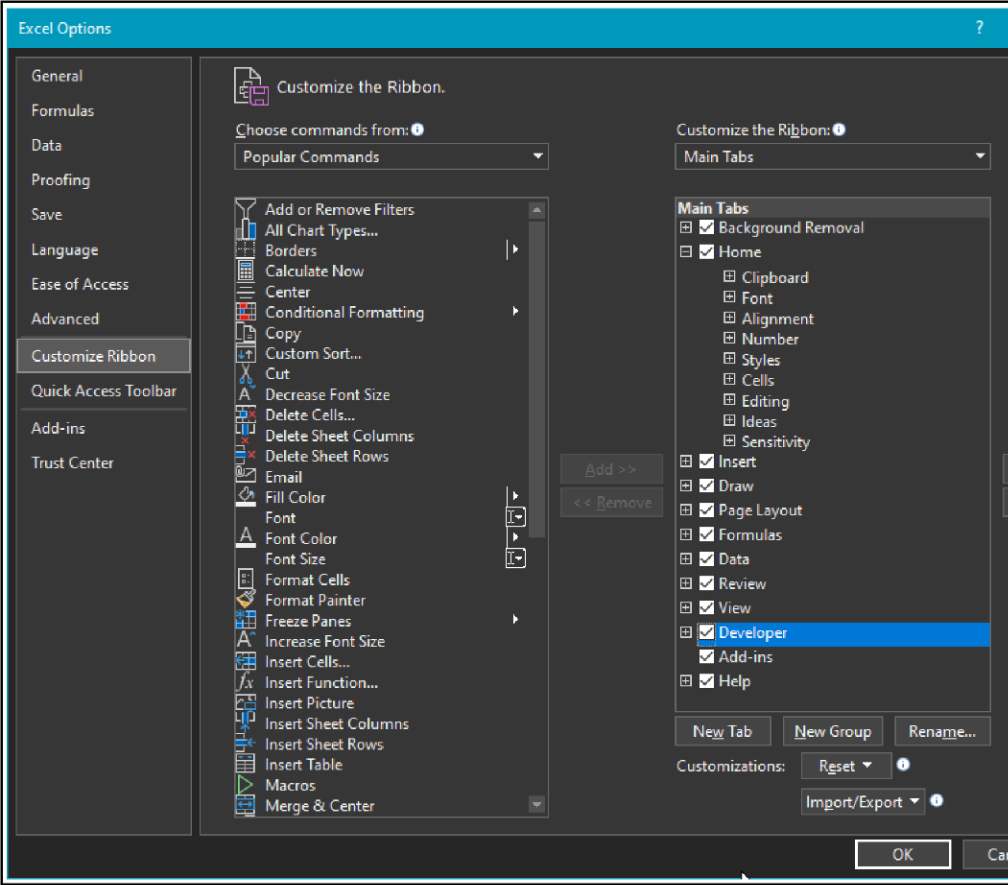
- Click File
- Go to Options
- In the left-hand pane, select Customize Ribbon
- Tick the option for Developer
- Click OK
- Select the Developer menu option
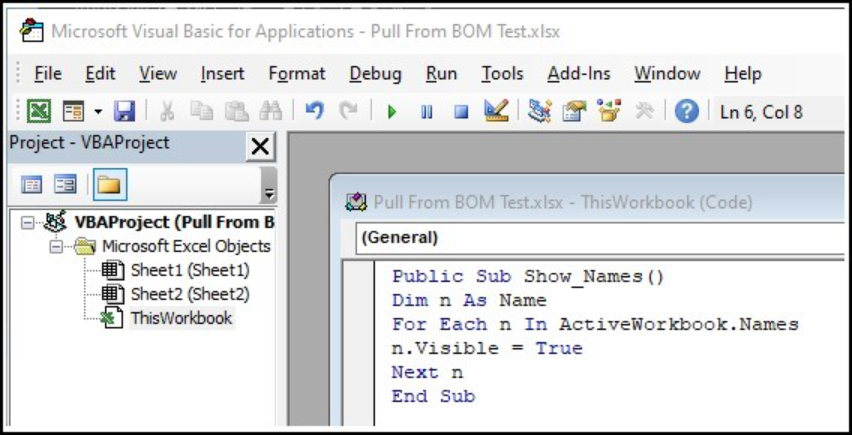
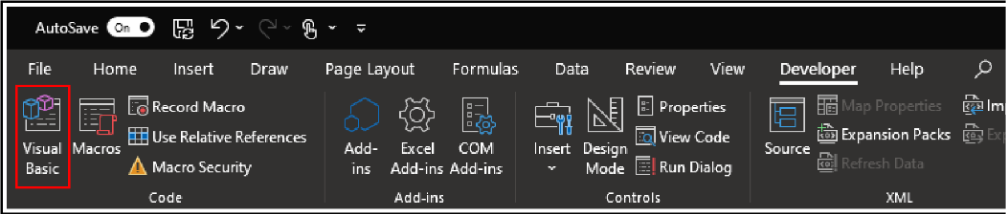 Now click on the Visual Basic button
- Double click on ThisWorkBook to open the "Code" window
- Enter the following Code into this Window:
- Click Run and close the Window
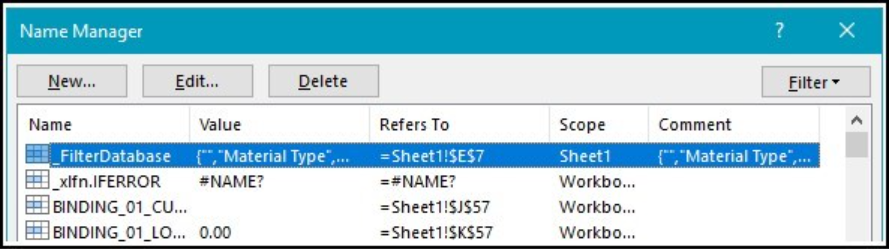
- Open the Name Manager and the first name range in the list will look something like this:
- If after you have populated your costing sheet with data, you hit save and you get the little green bubble saying costing saved but when you close and reopened the costing the values have not saved. Then the cells you have entered values in to do not have costing elements, without an element the data will not save.
- If however, after saving the costing sheet the green bubble does not appear and when refreshing the page the values disappear, then export the costing sheet. If you are then met with an error similar to the below, there is an issue with one or more of the formulas:
- This error occurs when on more formula is deemed by VisionPLM to be an attempt to inject malicious code into the system, similar to SQL injection. The second line in the error message highlights the formula that has caused the error. Finding the offending formula is not always easy because the error message doesn’t make it clear. In the above example the formula in question was this:
This document details the configuration necessary in Excel and VisionPLM to import a costing template and assign costing elements to record costing data into the system.
Creating A Template:
To begin with, the costing template must be created within Microsoft Excel on a single worksheet
Named ranges
Cells containing data that need to be stored in the VisionPLM database will require an Excel name range. If the cell does not have a named range set it will not be saved to the VisionPLM database when a costing is raised against a product.
Create a named range by selecting the cell in the Excel worksheet and typing the name into the cell reference box, then press enter.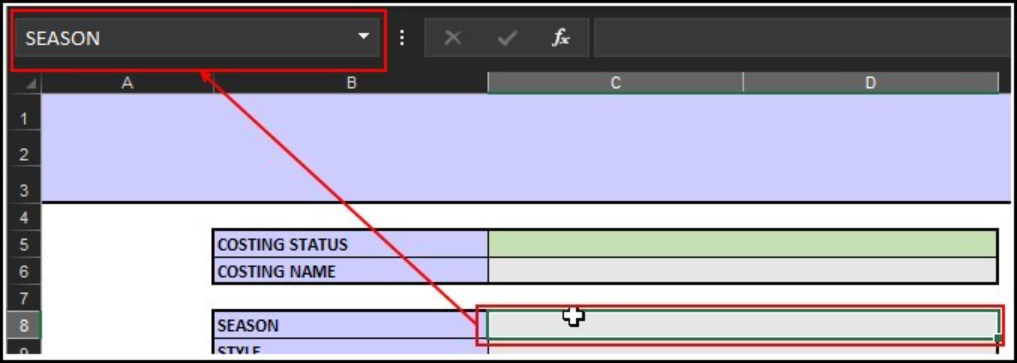
Existing named ranges can then be edited and moved in Formulas - Name Manager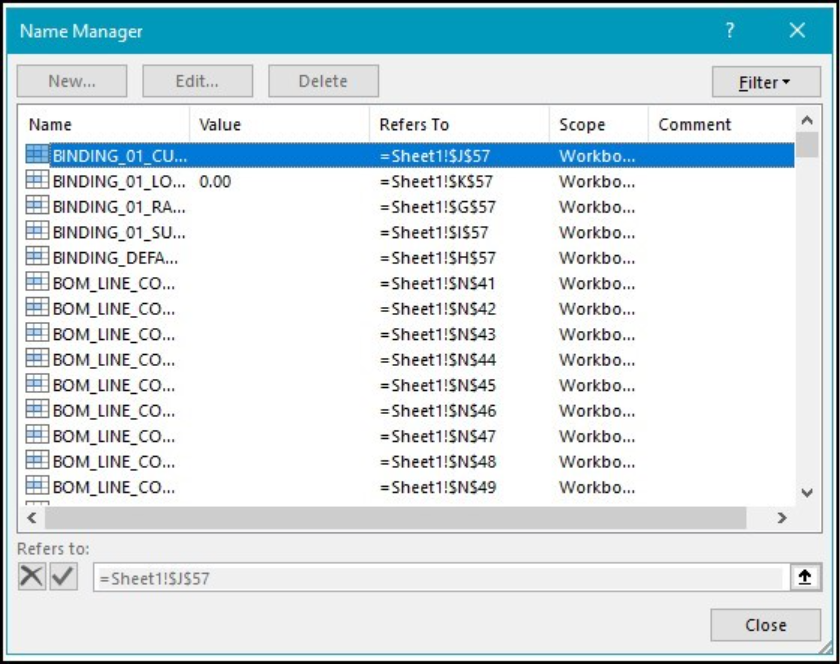
Before uploading a template to VisionPLM the Name Manager should be checked to validate the Name Ranges.
There should be no Name Ranges with errors or Name Ranges that point to the same cell.
A quick way to check for errors is to use the filter in the top right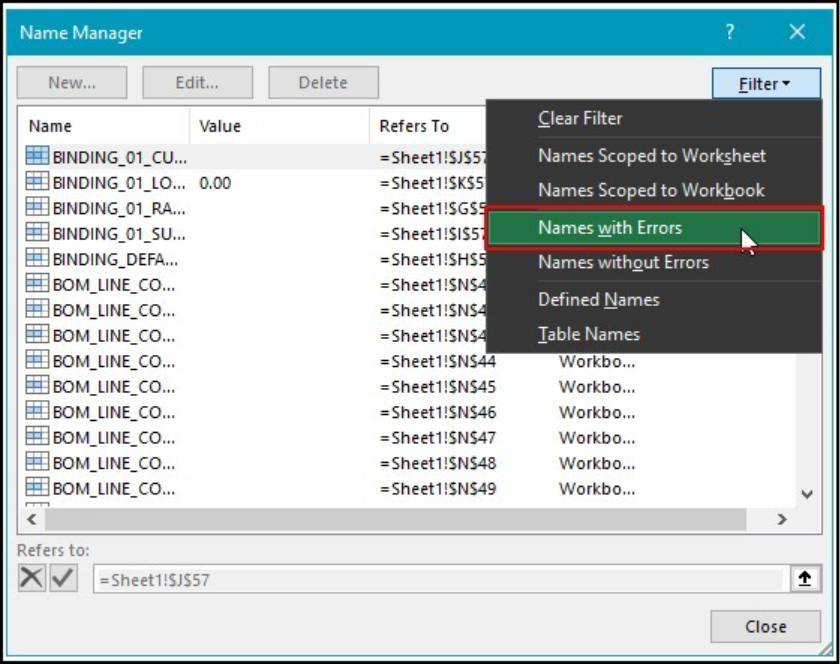
Formulas and formatting
Best practices for formatting a costing template are:
Before uploading the excel sheet into VisionPLM the sheet should be protected. This will lock down any cells you do not want users to edit when using the costings in the system e.g. cells calculations. First, the cells that you want to lock down in Excel: • Select all the required cells in the sheet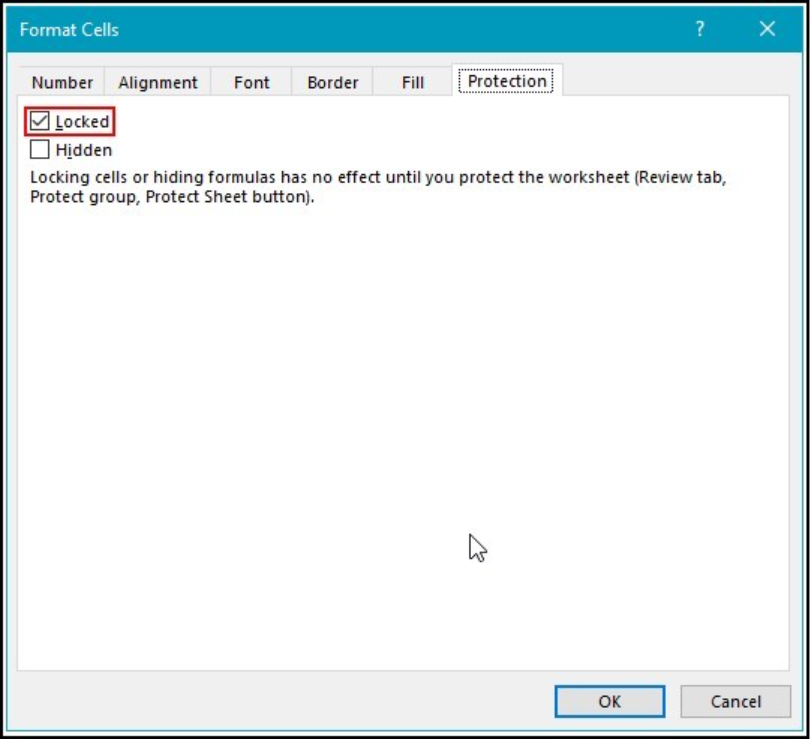
To allow specific cells to be editable
Uploading the costing template to VisionPLM
Uploading template

 Before uploading the Excel worksheet ensure the correct costing type already exists. Costing types are a way of grouping costing templates e.g. all Fully Factored costing templates would have a costing type of FF.
Navigate to Maintenance - Costing type
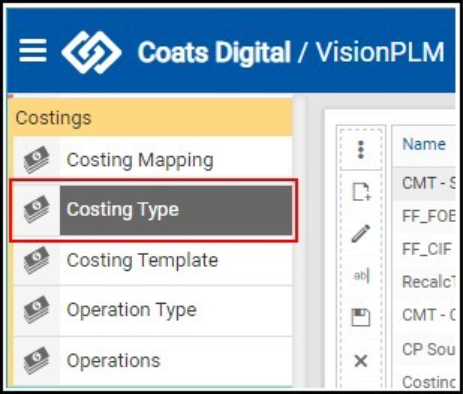
In the grid insert a new costing type with a name and a description. Leave Recalculate costing blank for now.
Go to Maintenance - Costing Template
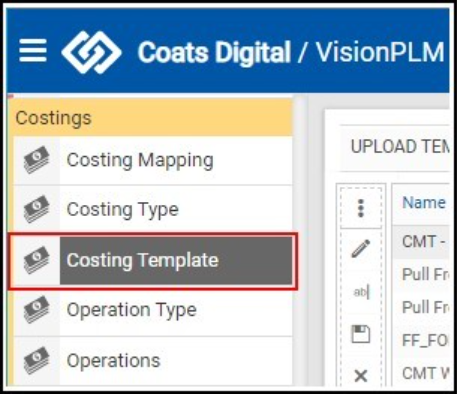
Select Upload Template in the top left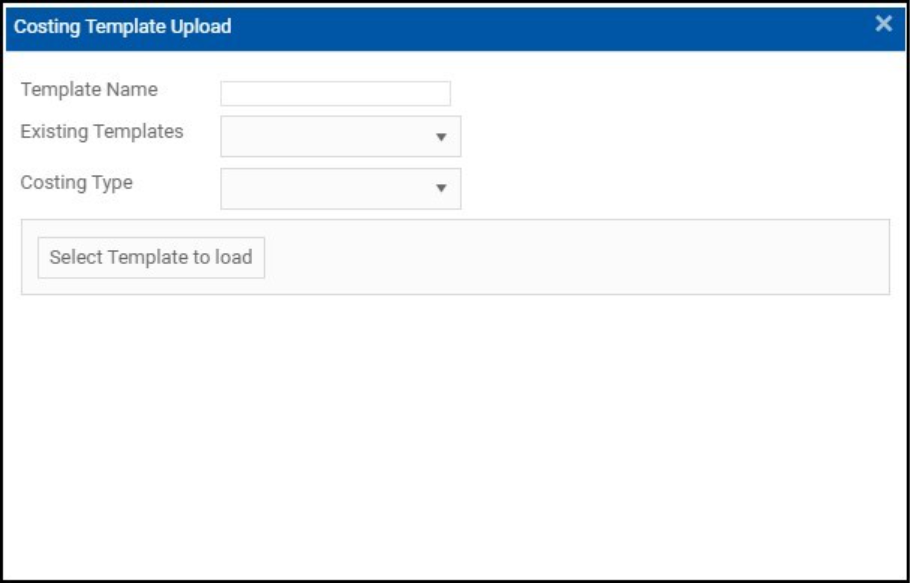
Enter a name and select the costing type created in the previous step. A costing template must have a costing type before being uploaded or it will not be available to the users.
Click Select Template to load and select the Excel Workbook created earlier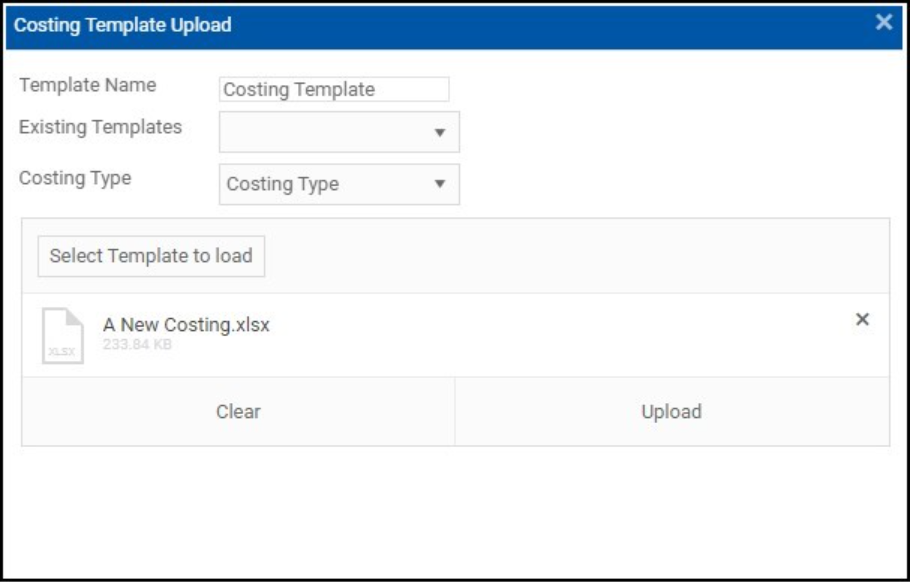
Click Upload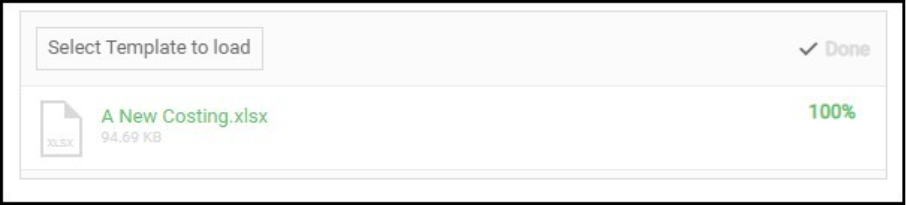
Within the costing template area, any existing templates can be downloaded and audit trails viewed detailing when a template was last uploaded.
Go back to the Costing type and select the recently created costing as the ‘Recalculate costing’
The Recalculation costing should be set to the costing sheet that will be the default costing for that costing type. This should be the costing that has the most complete set of calculations
The ‘Recalculate costing’ is the template Vision will use when saving values to the database. At the point of saving, vision will use the formulas in this template to calculate the values that will be saved to the database.
The only time there should be multiple costing templates with the same costing type is when the second, third, etc templates are alternate views of the main template but have the same calculations. For example, you may have a full costing that shows all the lookups and sensitive financial data to be used by admins with the second template that does not include the lookups for regular users. In this example, the full admin template would be the ‘Recalculate costing’ against the costing type. Where the formulas vary between templates they should be different costing types.
Costing Elements
Once the Excel Workbook has been uploaded into the system, it will take all the name ranges and create an element for each one. The newly created elements will then need to be mapped to system fields where required. To map the newly created elements go into Maintenance - Costing Mapping:
Highlight the row to be amended and update the details in the form to the right: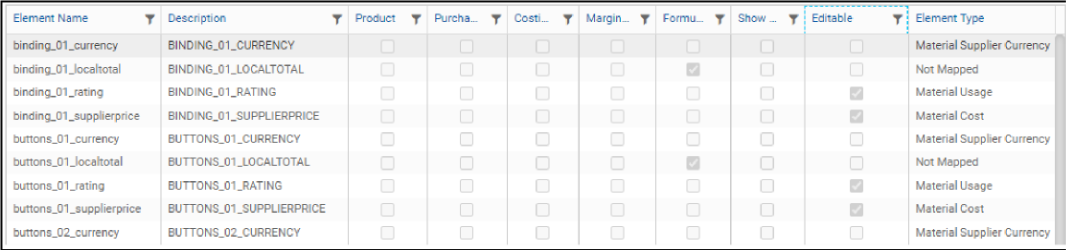
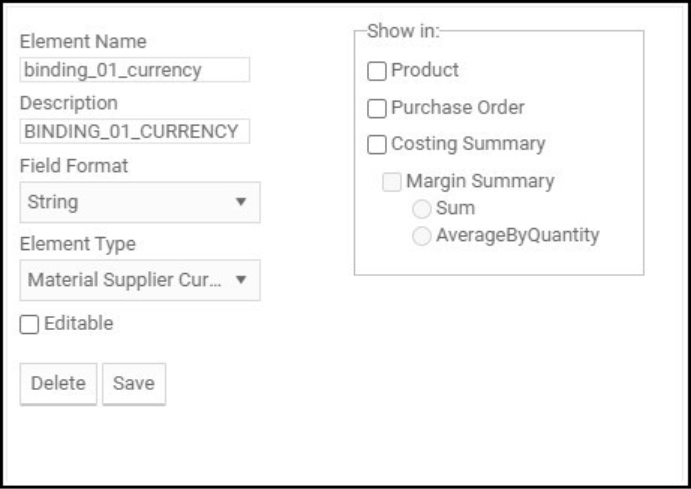
Element name – The name range in the excel sheet.
Description – This is auto-populated with the name of the element, to be used for brief descriptions of the purpose of the element. Is only visible on this screen.
Field format – There are three types String, Int, and Double.
Element type – all cells that will pull data from VisionPLM to display on the costing will need to be mapped using the element type, e.g. the name of the style will be Product Name. Cells that do not need to be saved to the database but will remain in the costing sheet should stay as Not Mapped.
Note:
A quick way of setting the same element type on multiple elements, e.g. Material usage in a CMT costing is to:Click on the element type drop down list
Editable – This option is only available if the license option ‘Edit costings inline’ is switched on. It allows users to edit up to ten elements outside the costing sheet, in areas like the Product Manager. This option is not available for elements that have a formula in the cell.
Show in – This option makes the selected element visible in the Product Manager, Product form, PO grid and PO form, dependent on which option is selected. Margin summary allows the selected element to be summed or averaged in the costing summary grid, this will only work for elements that are ‘Int’ or ‘Double’.
The lower section defines the values that will be pulled from the costing sheet to purchase orders raised using that costing.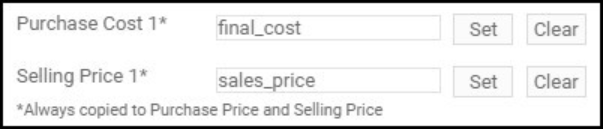
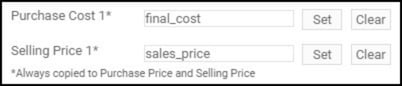
To set the Purchase Cost/Selling Price select the element that holds the purchase cost/selling price from the grid to the left:
Then click Set.
Costing Summary
The costing summary grid has the ability to sum or calculate the weighted average on costing elements that are Int or Double.
The weighted average and sum are calculated for all costings that are in the costing grid, including approved and unapproved costings. Filters can be applied to the grid and the summary will continue to calculate.
Sum
Weighted Average
To calculate the weighted average for the purchase cost and selling price, repeat the steps for Sum but select AveragebyQuantity.
The Calculation of the weighted average margin percentage in the costing summary grid requires the following elements in the costing sheet and they must also be shown in the costing summary. If any one of these elements is missing or is blank for one costing in the selected range/node/ filter the weighted margin percentage will not calculate.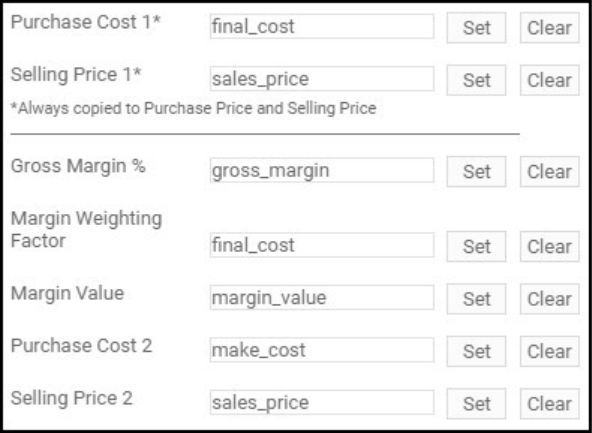
Calculating the weighted margin percentage is the sum of the total margin value divided by the sum of the total sales across all products multiplied by 100
(ΣTMV / ΣTSP) * 100
Costing Recalculation
When a key product field is amended outside of a costing sheet VisionPLM will automatically flush the new data into the costing sheet without user intervention.
If the following fields are updated on the Costing or Product record the following associated mapped elements on any costings of that
Costing or Product will also be updated to the current system values and any cost sheet formulae re-calculated using these values (including lookups contained in the sheet) prior to resaving the new values of the updated costing elements.
No other element values will be automatically updated to current system values except for those specifically detailed below and therefore for all other elements in the cost sheet the values will stay the same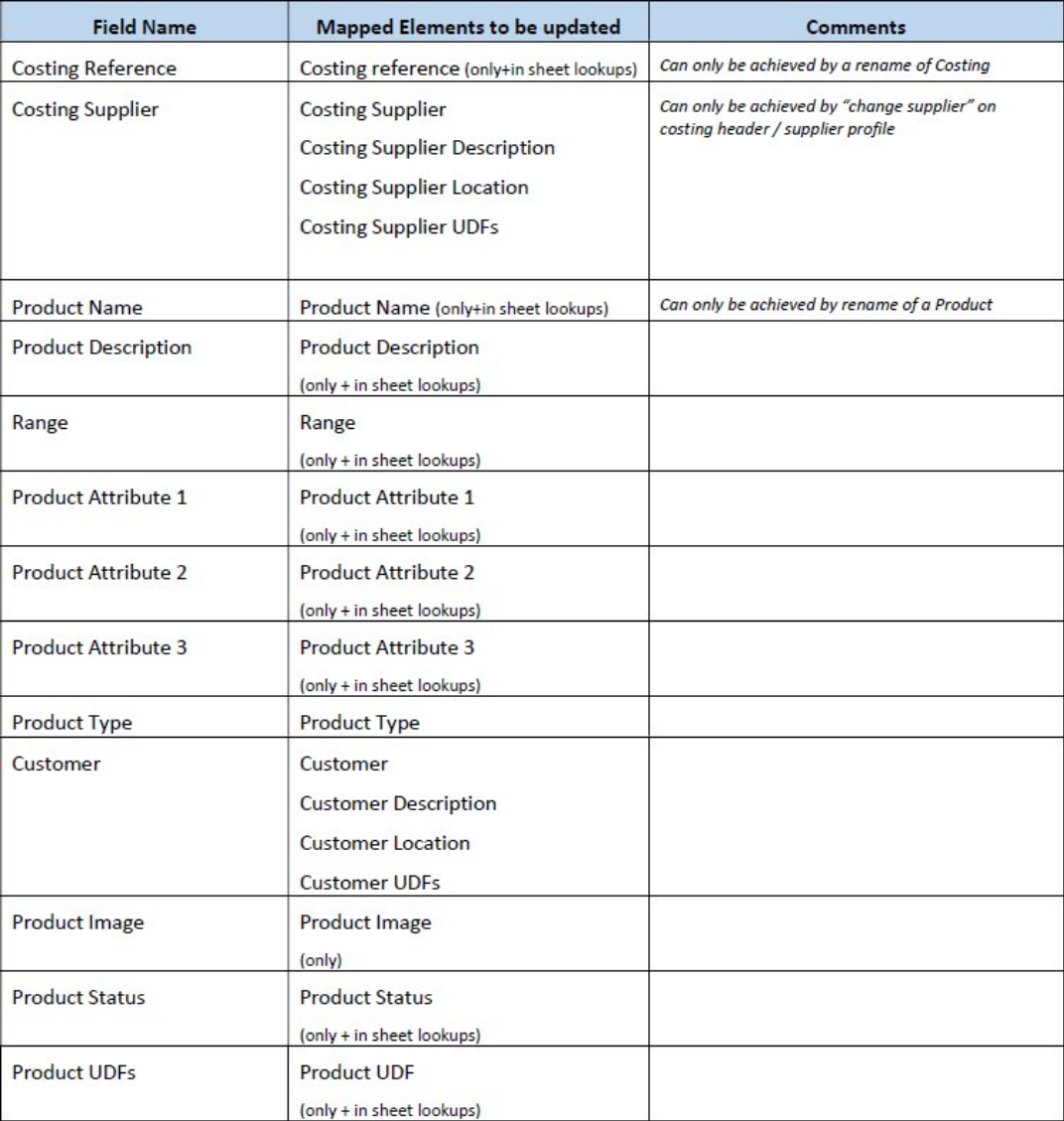
Changing a customer/supplier/material field i.e. material cost outside of the costing will not automatically force a costing recalculation, but may be included in a costing structure/formulae. Therefore the user will have to decide whether or not to update the costing with the new values. This does not include material usage because this is done a size level and costing are not size specific. When opening a costing after a change has been made outside the costing sheet that affects values in the costing sheet the user is notified with the below message:

The user will then have to go to Show Changes and decide whether or not they would like to apply the changes to the costing:
Here they will have the option to select which changes they would like to accept, forcing the costing to recalculate and which they would like to ignore keeping the original values.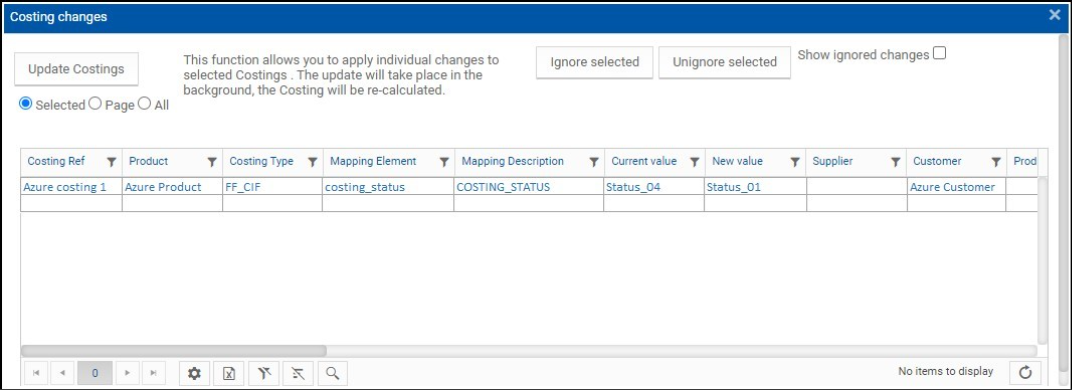
Under Tools - Mass Costing Update users are able to apply changes across multiple costings
Troubleshooting
Hidden named ranges
A hidden name range is created in Excel when a filter is applied to the worksheet. VisionPLM does not allow hidden name ranges, if you try and upload a worksheet with a hidden name range you will see the below error: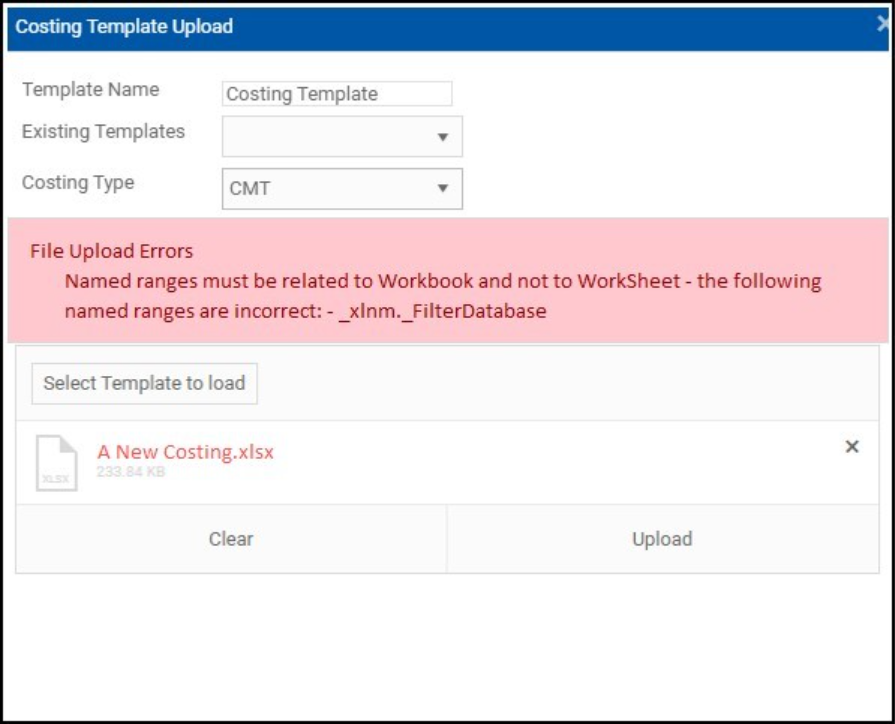
To remove the hidden name range first remove any filters on the worksheet. In the Developer tab select Visual Basic, if the developers' tab is not available: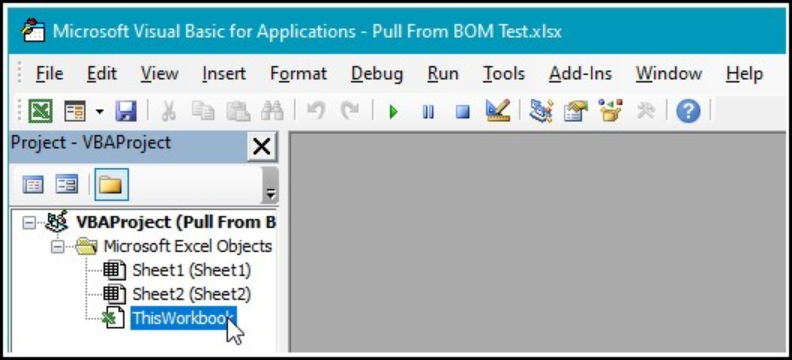
Costing will not save
There could many reasons why a costing will not save but here are the most common:
A potentially dangerous Request.Form value was detected from the client
(CostingDataJSON="...gin_pc_GBP<F37,\"Your Margin I...")
IF(Wholesale_Margin_pc_GBP<F37,"Your Margin is too low"
In this instance, VisionPLM would not accept the <F37. To correct the formula, round brackets had to be placed around the cell reference changing the formula to this:
IF(Wholesale_Margin_pc_GBP<(F37),"Your Margin is too low"
In most cases, you will probably need a developer or someone who has knowledge of HTML to help understand which part of the formula is causing the issue.
No Costings in "Apply New Costing Template" or "Mass Costing update"
A recalculate costing has not been set against the costing type.
"Error loading window" when trying to view or create a costing
A costing template does not have a costing type.
Further reading:
Links to related articles