
Overview
This article provides an overview of the Super Search functionality in VisionPLM, along with some useful tips to help you get the most from the feature.
From VisionPLM Release 2.18.0000, Super Search was enhanced to provide a more powerful and efficient search experience. The location of the feature was also updated and is now permanently available as a search bar at the top of the VisionPLM page.

Using Super Search
When you click in the Super Search bar, a drop-down menu appears, allowing you to choose which areas of VisionPLM you want to include in your search. This helps narrow the results and improve search accuracy.
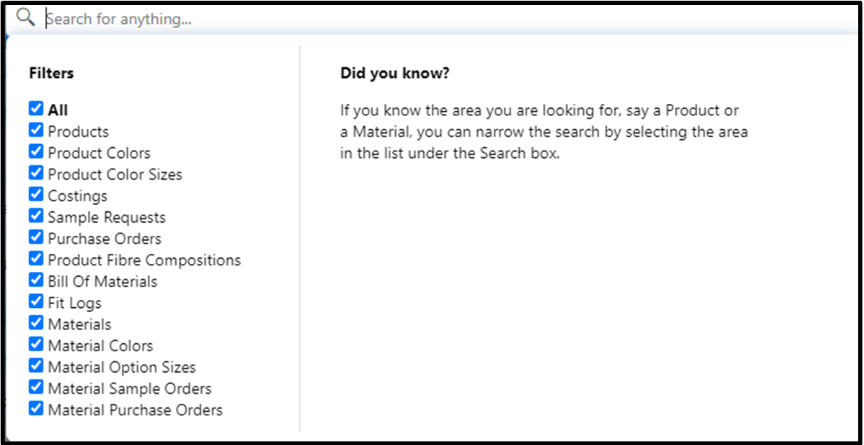
Best Practice
Before starting a search, deselect any areas that are not relevant to what you are looking for. This reduces the number of returned results and makes it easier to find the required information.
Searching for Results
Begin typing your search term into the Super Search bar. As you enter characters, matching results are displayed automatically. Super Search is designed to return results based on the entered text and is most effective when searching for specific terms or identifiers.
Once results are displayed, select the Grid icon to open the full results grid. This allows you to perform additional filtering and refinement to locate the exact record you need.
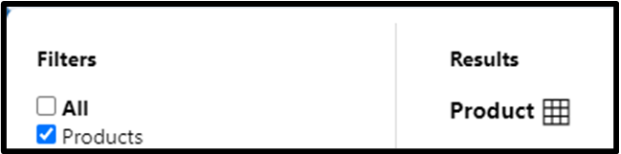
- Use the search filters to limit the scope of your search before entering your search term.
- Review results in the grid view for additional filtering options.
- Use specific search terms where possible to improve the relevance of returned results.
- If too many results are returned, further refine your search using the available filters.