
Purpose & Scope
This article explains how to access, view, and manage Purchase Orders (POs) within VisionPLM, including navigating between views, maintaining PO details, updating PO lines, and reviewing activity history.
Accessing Purchase Orders- Open the Hamburger Menu in VisionPLM.
- Select Purchase Orders.
- If Purchase Orders is a frequently used function, right-click the icon and select Pin to Top Taskbar for quicker access.
Viewing Purchase Orders
After opening Purchase Orders, a list of all POs currently stored within VisionPLM is displayed.
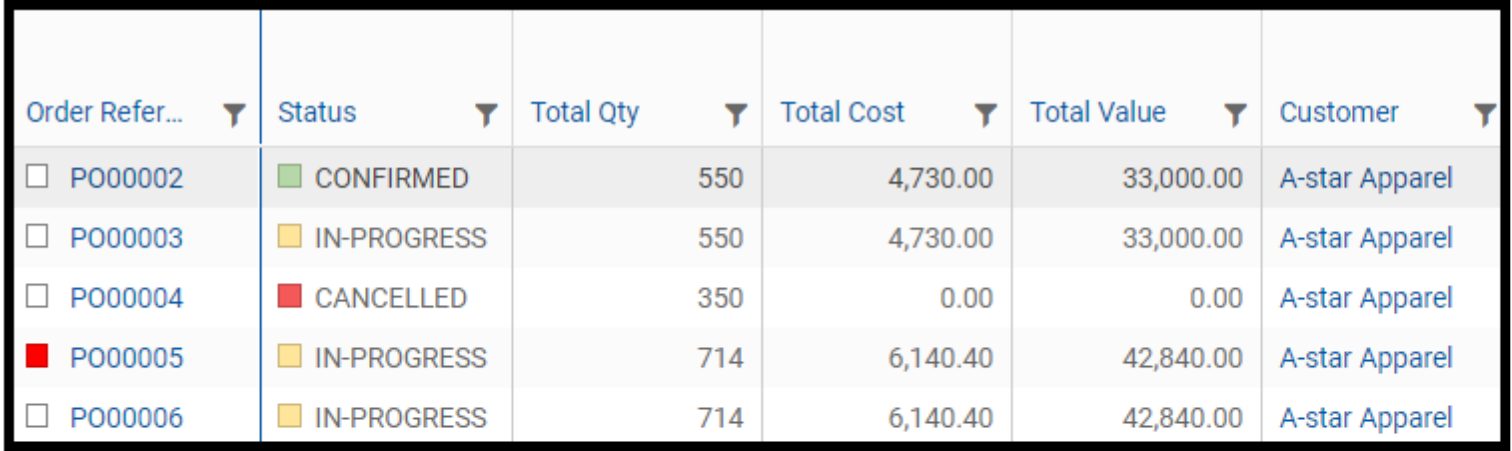
Opening a Purchase Order in Normal View
To open a Purchase Order in Normal View:
- Select the required PO from the list.
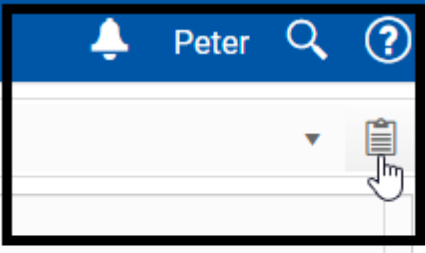
- Click the Clipboard icon in the upper-right corner of the screen.
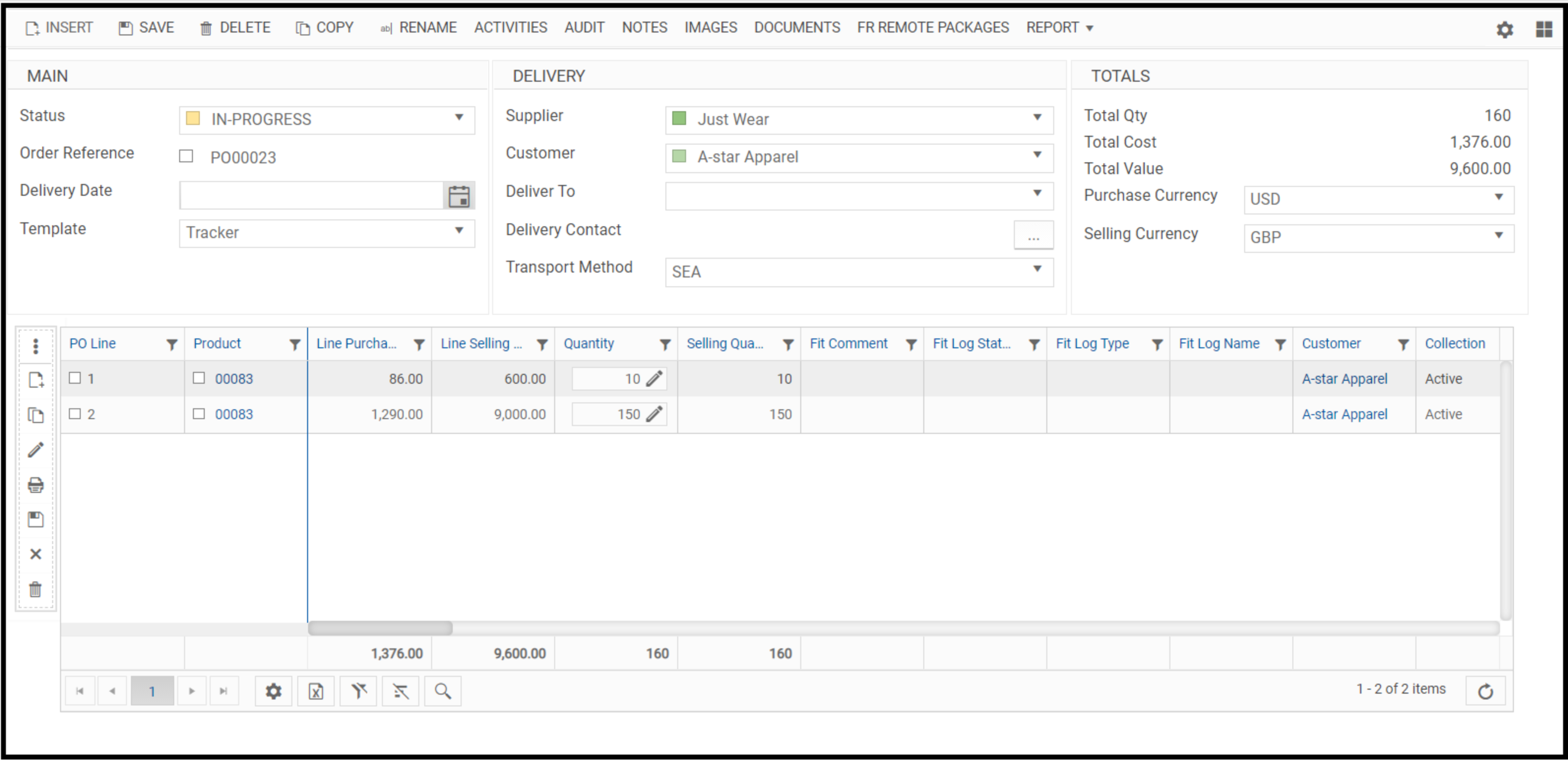
The Purchase Order will then open in a detailed maintenance screen.
Managing Purchase Orders
Within the Purchase Order detailed view, users can perform the following actions:
- Create a new Purchase Order
- Save changes to the current Purchase Order
- Delete a Purchase Order
- Copy an existing Purchase Order
- Rename a Purchase Order
- Review Purchase Order activities and history
- Access additional Purchase Order functions available from the toolbar.
Managing Purchase Order Lines
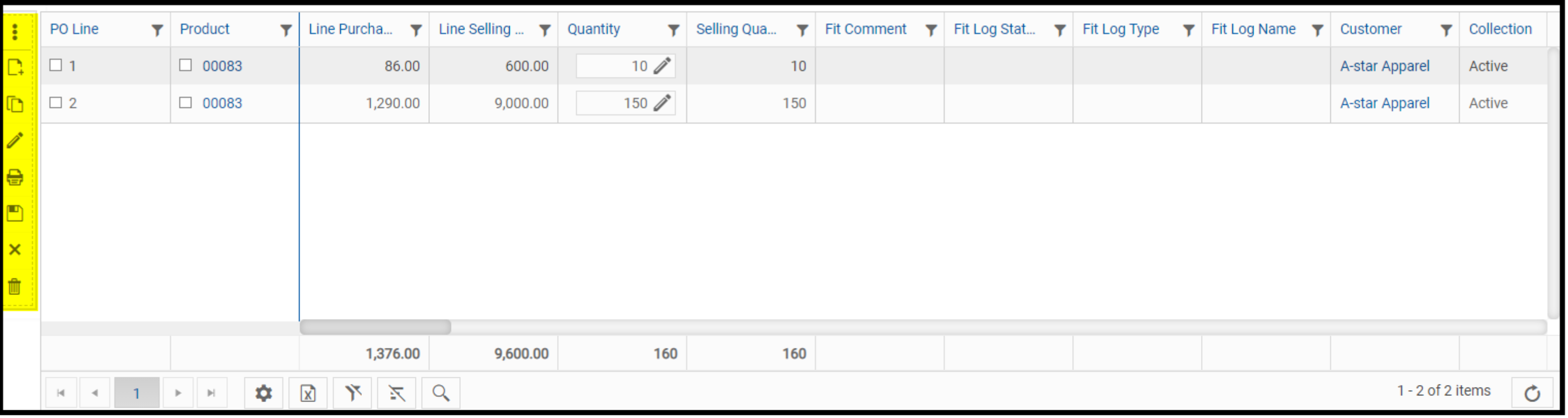
The lower section of the Purchase Order screen contains the PO Line details.
From this section, users can:
- Add new PO lines
- Amend existing PO lines
- Delete PO lines
- Maintain line-level information using the available function buttons.
Note: These functions only affect the selected PO Line and do not amend the main Purchase Order header information.
Viewing Purchase Order Activity History
To review activity associated with a Purchase Order:
- Select the Activities option from the top menu.
- Review the activity log to see actions that have been performed against the Purchase Order.
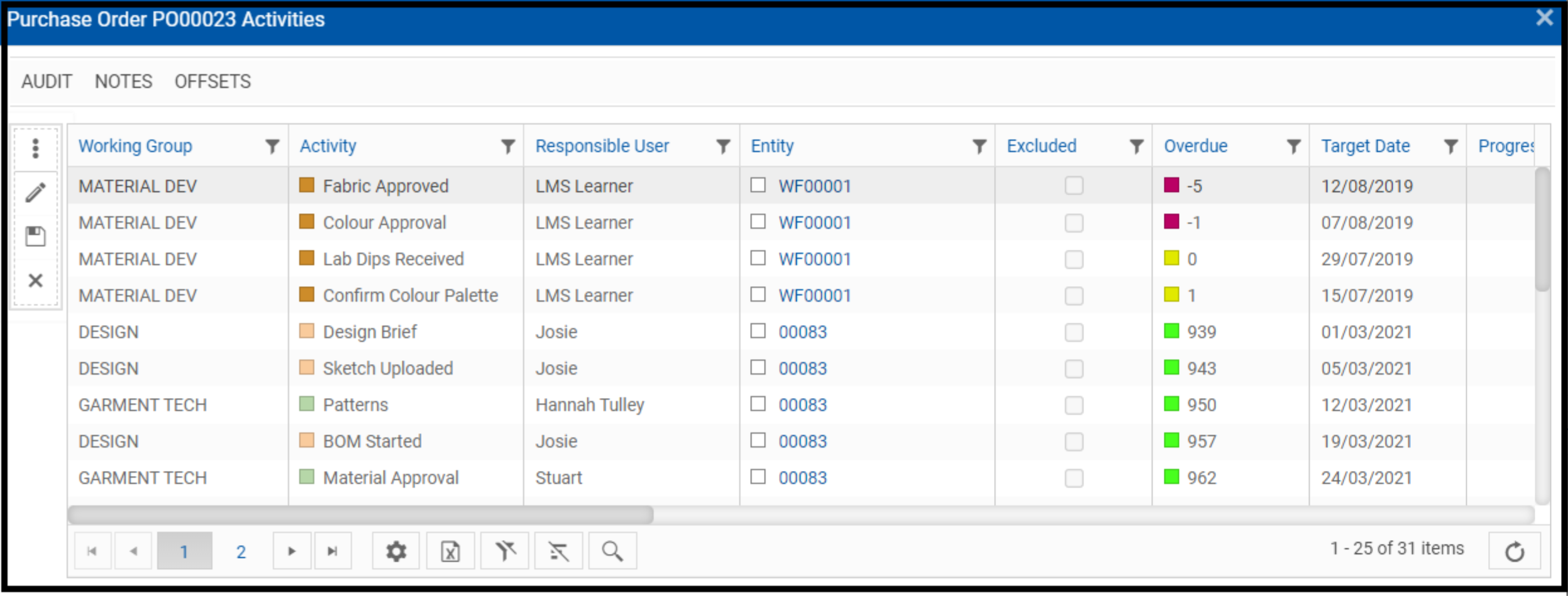
Reviewing Purchase Order Details
The Purchase Order Details section provides key information, including:
This information provides a summary of the Purchase Order and can be used to validate data before processing or updating records.
